How to make a voice or video call
In short
You can start a voice or video call in three ways: from the Calls tab, from a call bubble in a chat, or from the phone icon at the top of a chat.
From the Calls tab: tap Calls at the bottom of the app, then New call (or the cyan call button), Phonebook or Favorites. To call someone back, tap the green phone or camera on a past call.
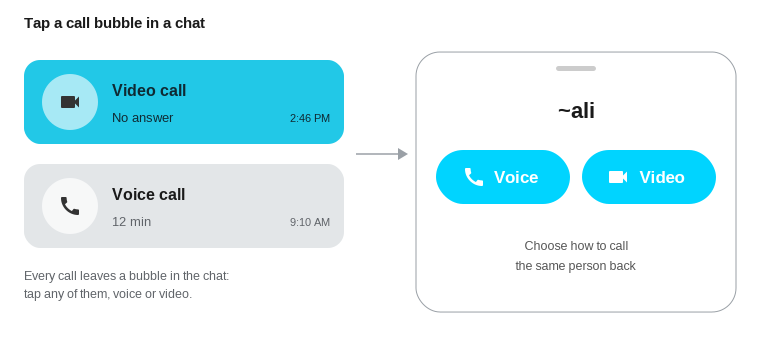
From a call bubble: every call leaves a bubble in your chat, such as “Video call, No answer”. Tap it and choose Voice or Video.
You can make free voice and video calls to anyone on Youflip, from a chat or from the Calls tab. Youflip never records, stores, listens to or watches your calls.
How to place a call
There are three ways to start a voice or video call on Youflip. Names in the pictures below are examples, not real people.
1. From the Calls page
Tap Calls in the bar at the bottom of the app.
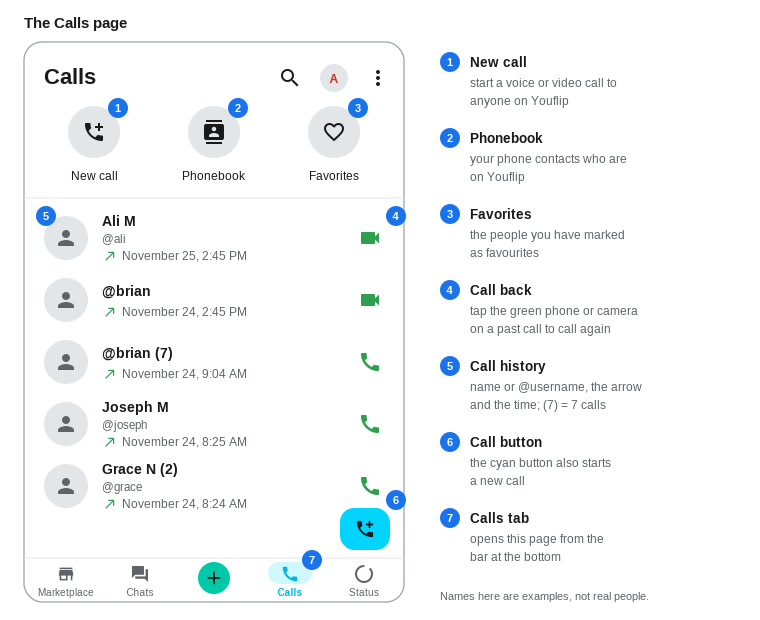
New call (or the cyan call button at the bottom right) starts a voice or video call to anyone on Youflip.
Phonebook shows your phone contacts who use Youflip, so you can call one of them.
Favorites shows the people you have marked as favourites, for quick calling.
Your call history lists every call: the person's name or @username, an arrow showing the direction of the call, and the date and time. A number in brackets, such as (7), means several calls with that person have been grouped together.
Call back by tapping the green phone (voice) or green camera (video) on the right of any past call.
2. From a call bubble in a chat
Every call leaves a bubble in your chat with that person, such as "Video call, No answer" or "Voice call, 12 min". Tap the bubble, then choose Voice or Video.
3. From the bar at the top of a chat
Open the chat, tap the phone icon in the bar at the top, and choose Voice call or Video call from the small menu. This bar is shown and explained in How to send voice messages, photos, documents and more, The bar at the top of a chat.